
How do I ...
If you pay for membership with the UK Column, but do not log in to your account, you miss out on the membership benefits for which you pay. If you are not yet a member, you can view membership options here.
At the upper-right-most corner of the home page, you will see a link to "Log In." Click that link.
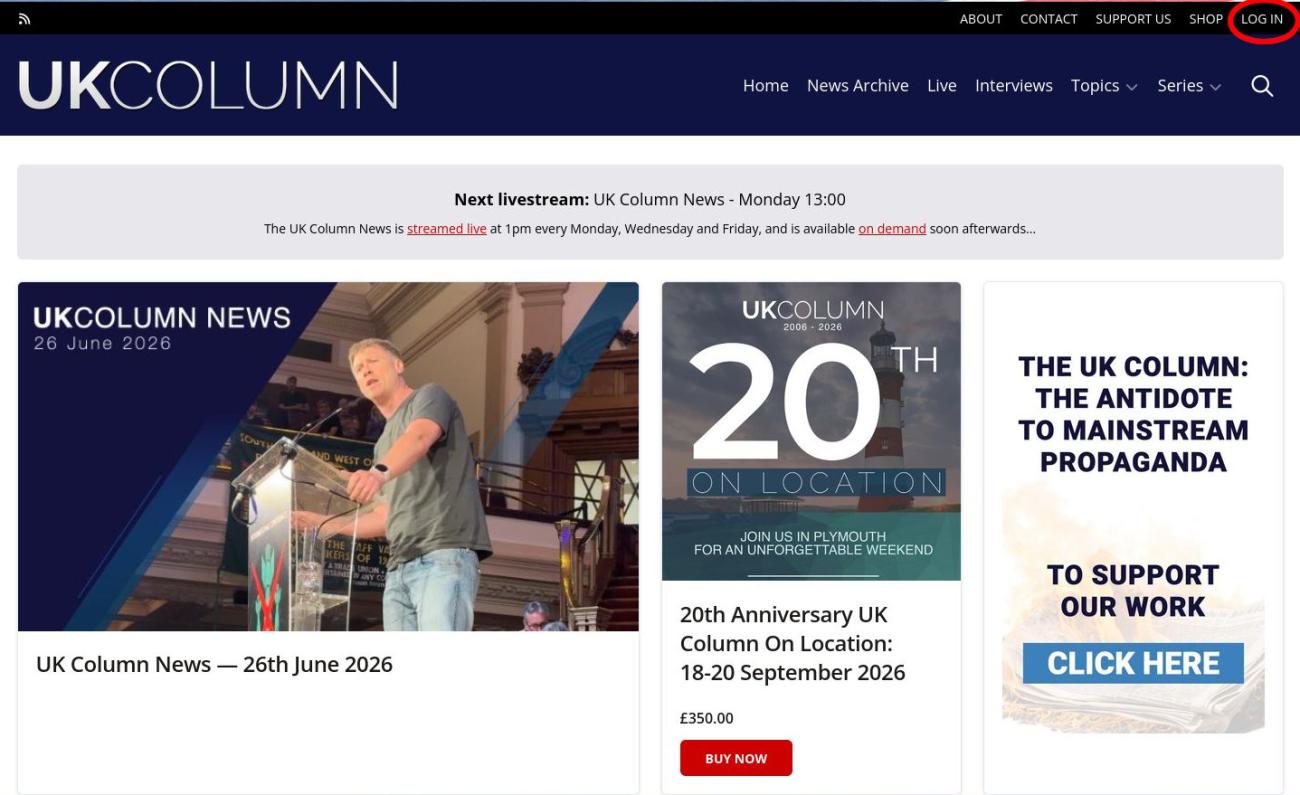
This will take you to the login page.
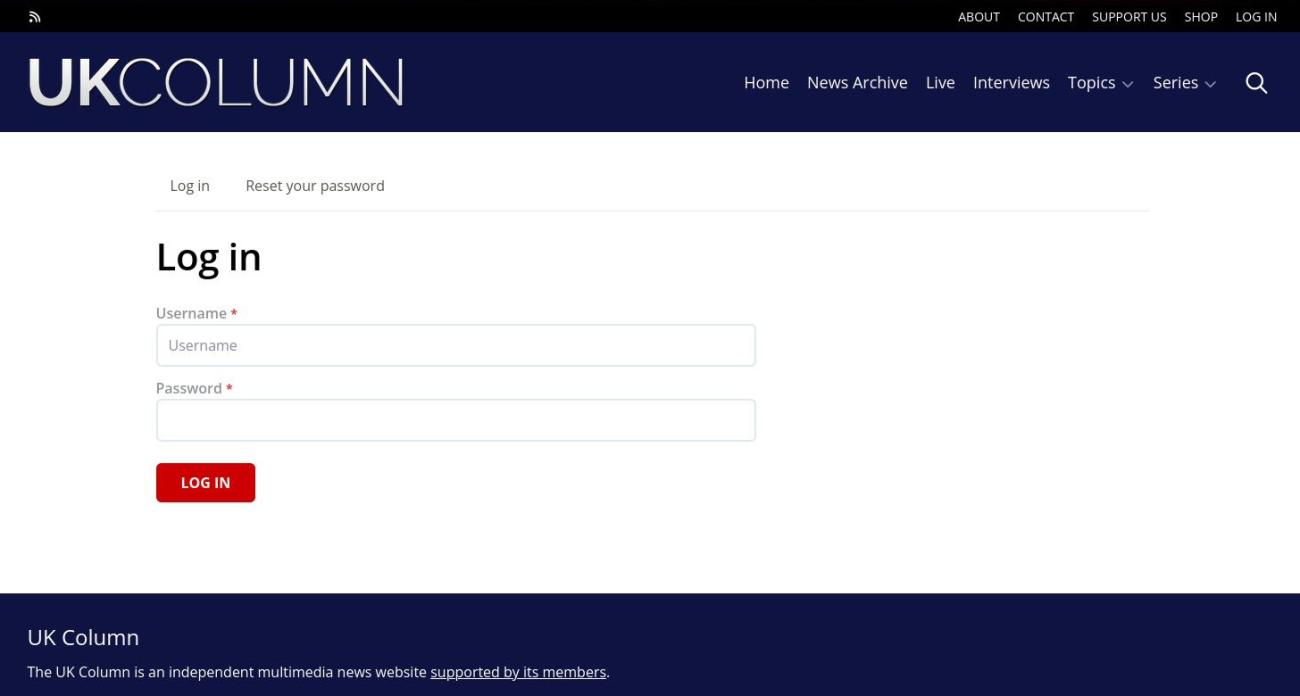
Here you can enter your login details.
- In the "Username" field you should enter your UK Column Username.
- In the password field, enter your password, then click the red "LOG IN" button.
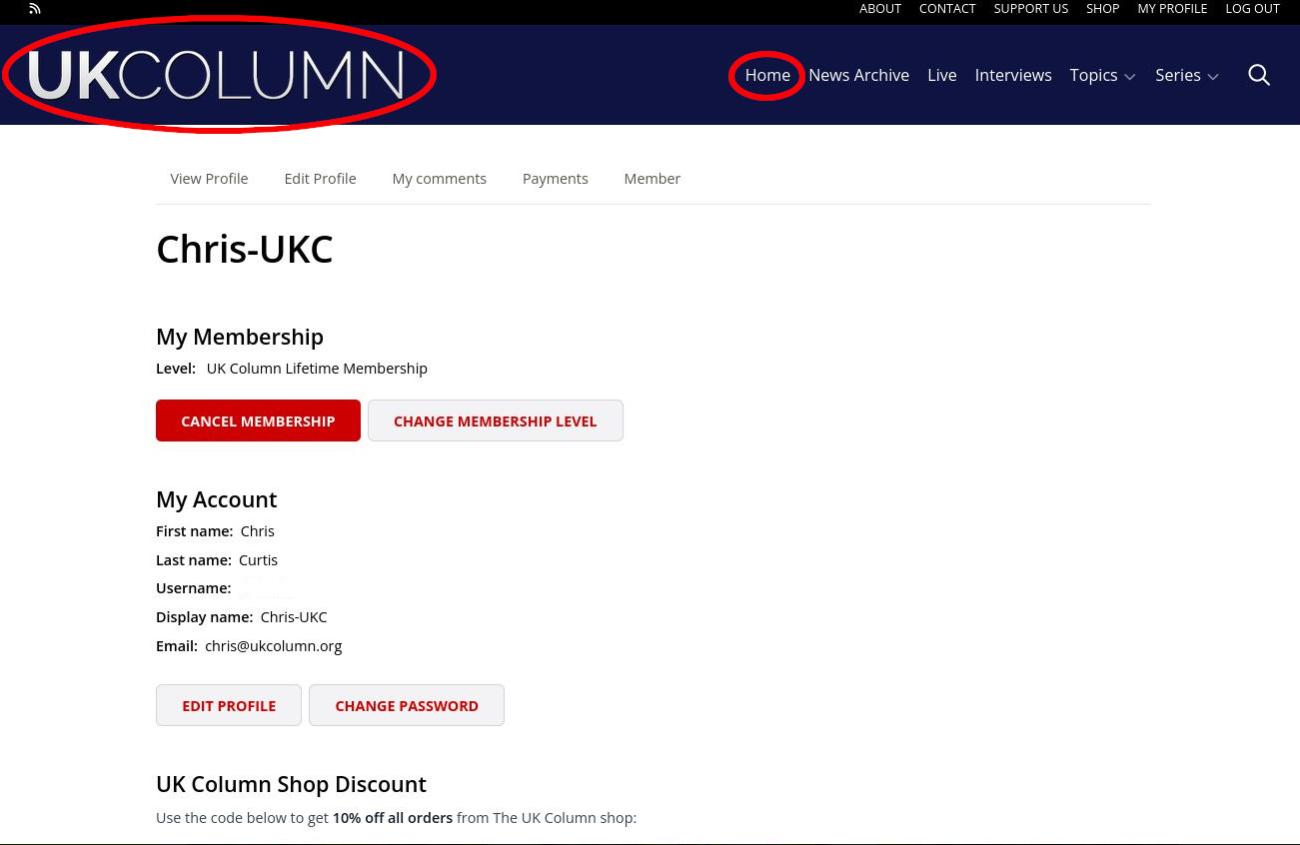
If you entered your correct username and password, You will now be logged in to your UK Column account. To confirm you are logged in, you will notice that the "Log In" button at the upper right of the screen has changed and now says "Log Out."
To return to the homepage, you can click the large blue "UK Column" banner in the upper left, or the "Home" button in the series of links in the upper right.
At the upper-right-most corner of the home page, you will see a link to "Log In." Click that link.
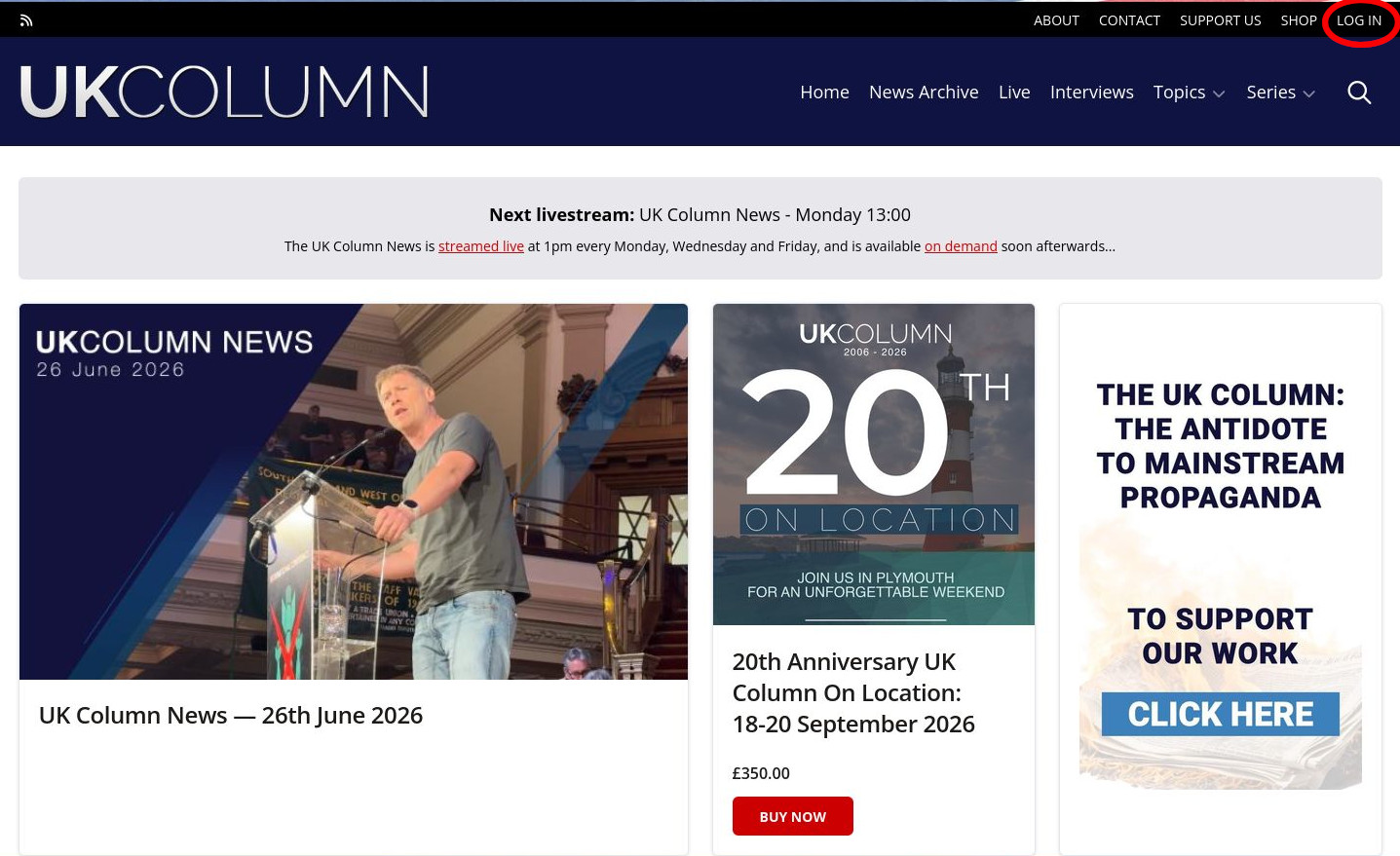
The password reset link is at the top of this page. This is also the link you will need if you have forgotten your Username.
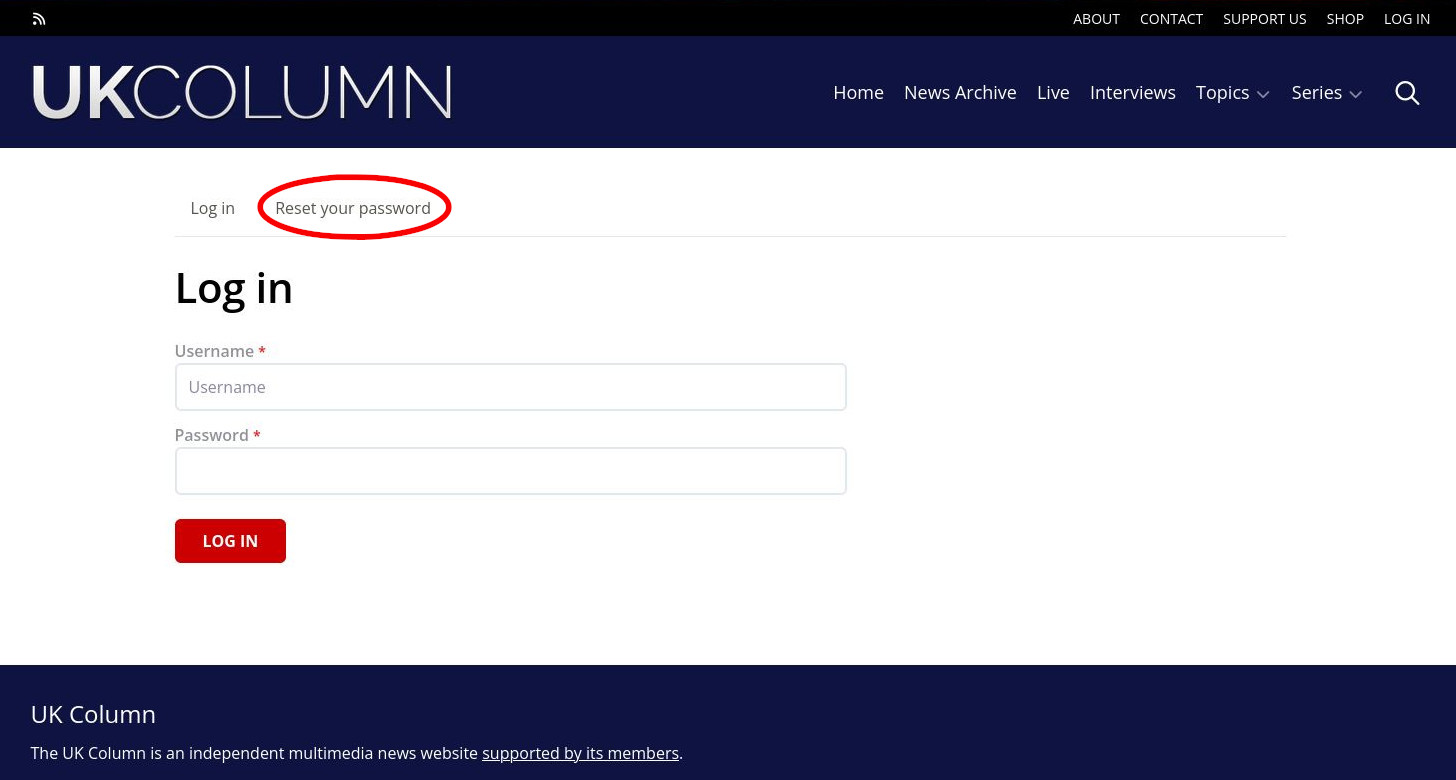
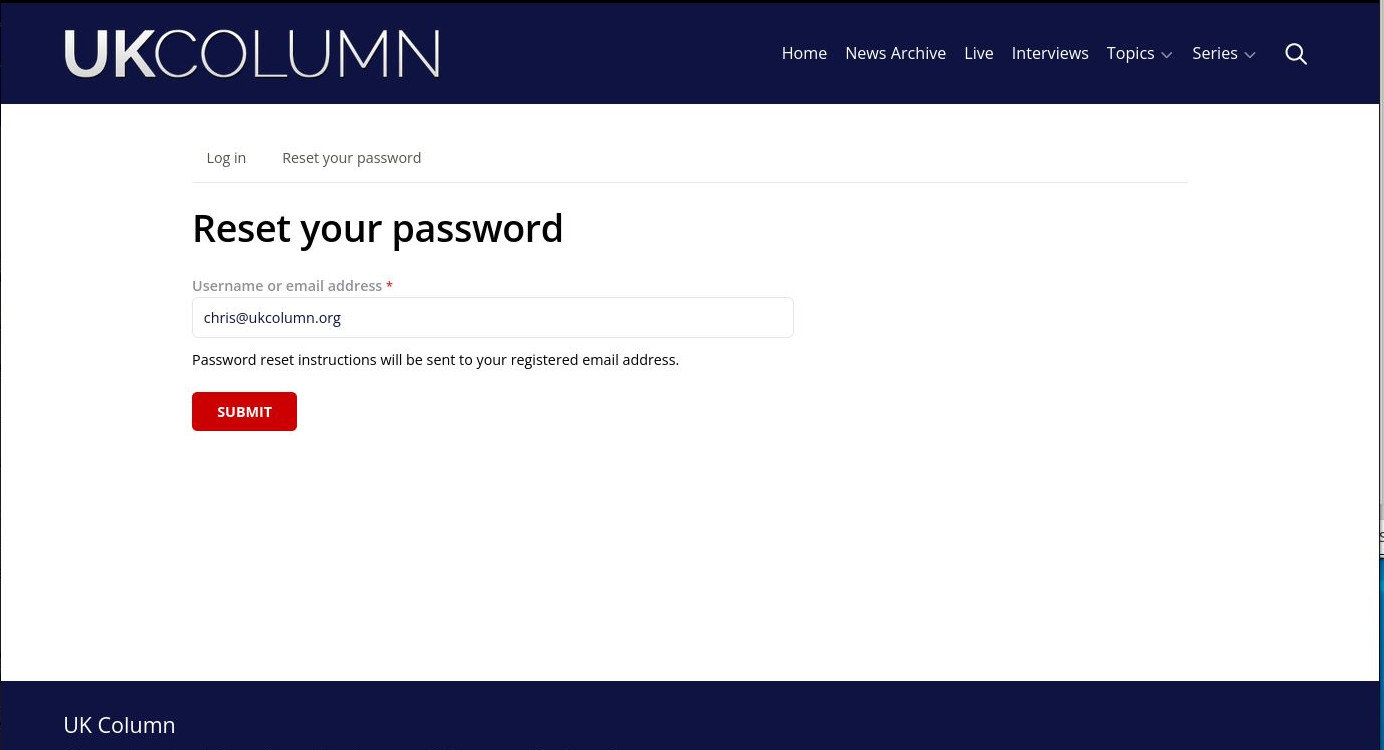
If you know your username, you can enter your username and a log-in link will be sent to your registered email address. If you have forgotten your username, you can enter the email address that is registered with your UK Column account, instead. When you have entered either your username or password, click the red "submit" button.
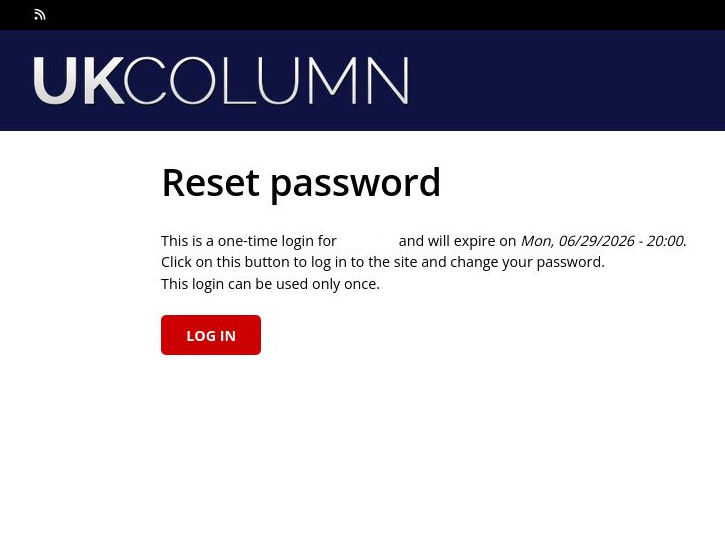
You should soon receive an email from the UK Column. The email will contain a one-time passwordless login link. Click that link to arrive at a page which will explain this is a one-time login. If you had forgotten your username, take note: the email you received, and also this login page, will address you by your username. You now have a red "Log In" button. Click that button.
You will be dropped onto the "Edit Profile" section of your profile page.
Enter your desired password into the "Password field" and then enter the exact same password into the "Confirm Password" field.
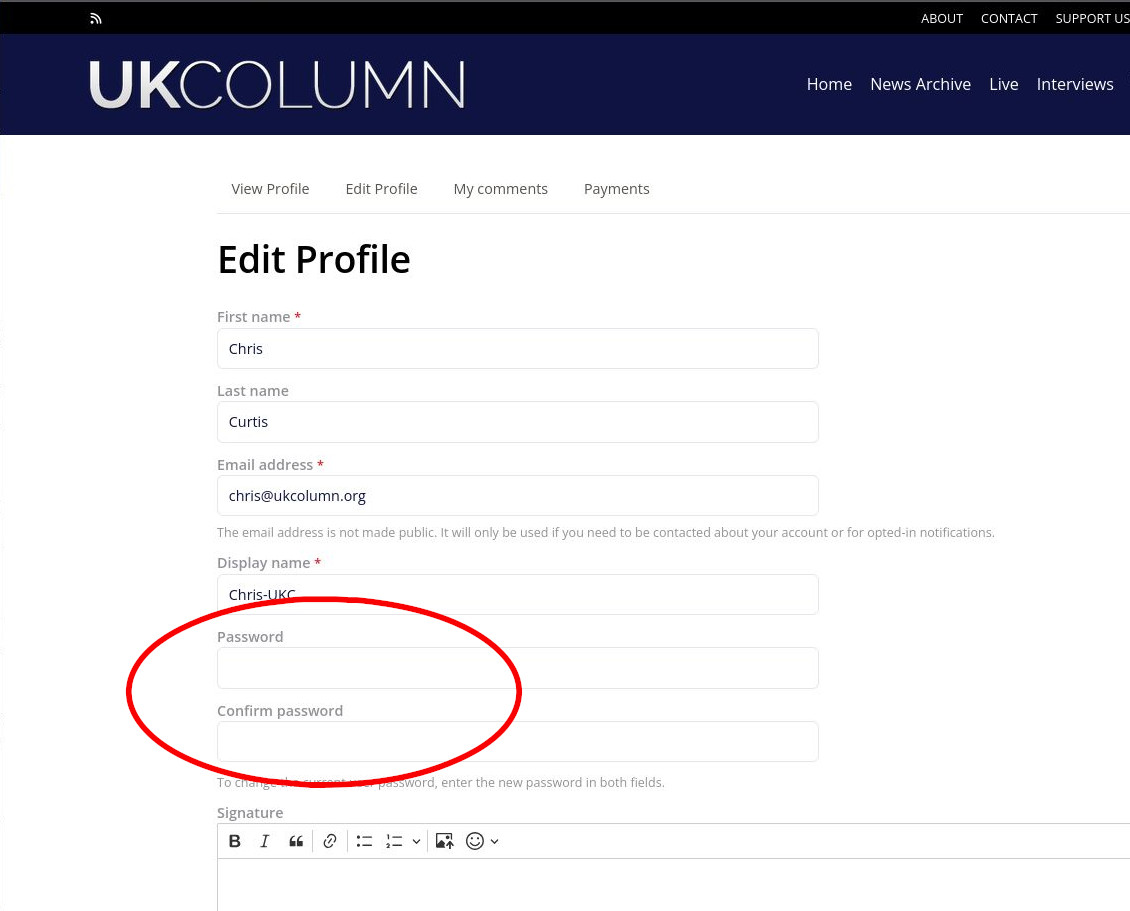
Do not leave this screen until you have scrolled to the bottom of the screen and clicked the "Save" button.
You have now viewed your username and changed your password. This username and password will serve as your log-in credentials for future logins.
To return to the homepage, click the large blue "UK Column" banner in the upper left, or the "Home" button in the series of links in the upper right.
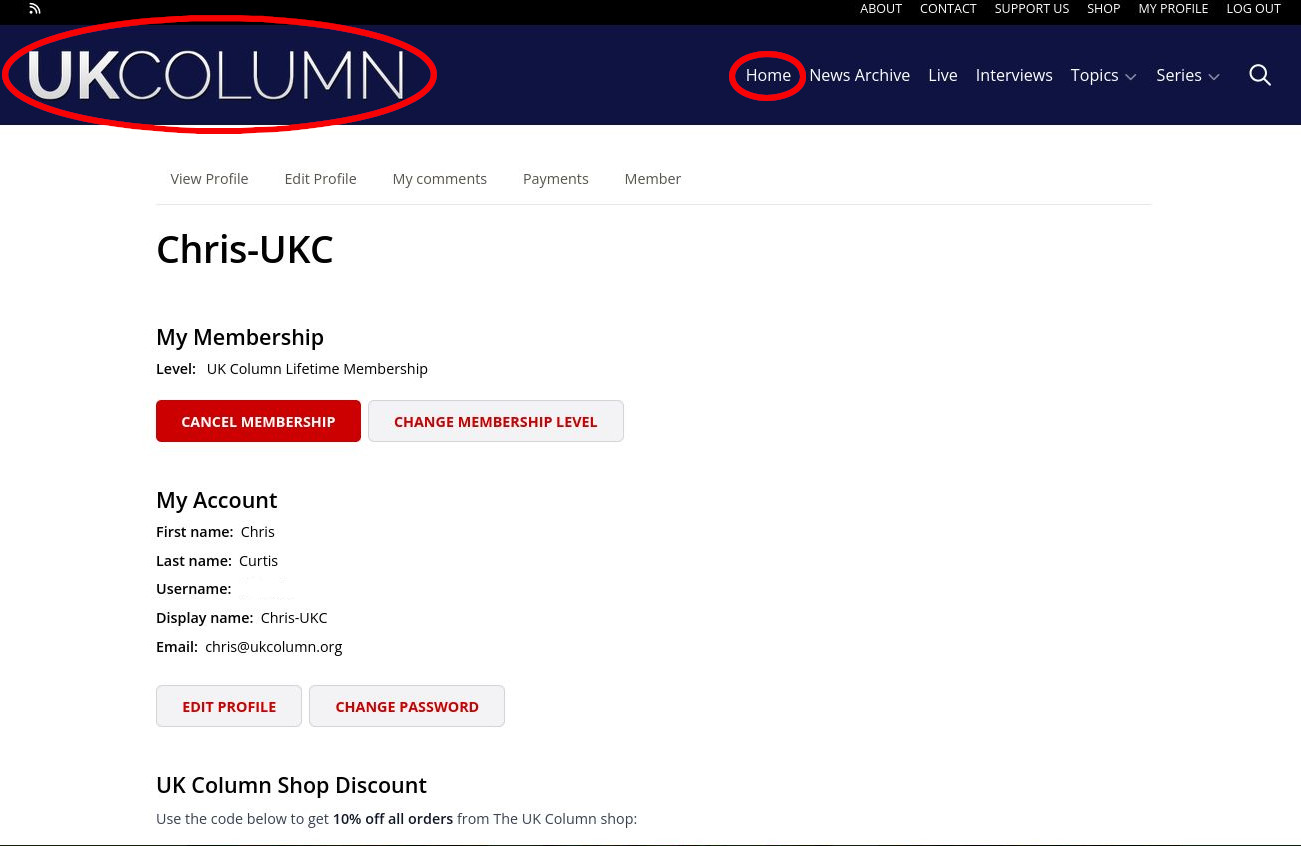
Want to change the displayed name that people see for your account? Would you like a new password? Perhaps you want to update your email address or add a photo so the rest of the community can see who you are. These sorts of changes can be made on the profile page for your UK Column account.
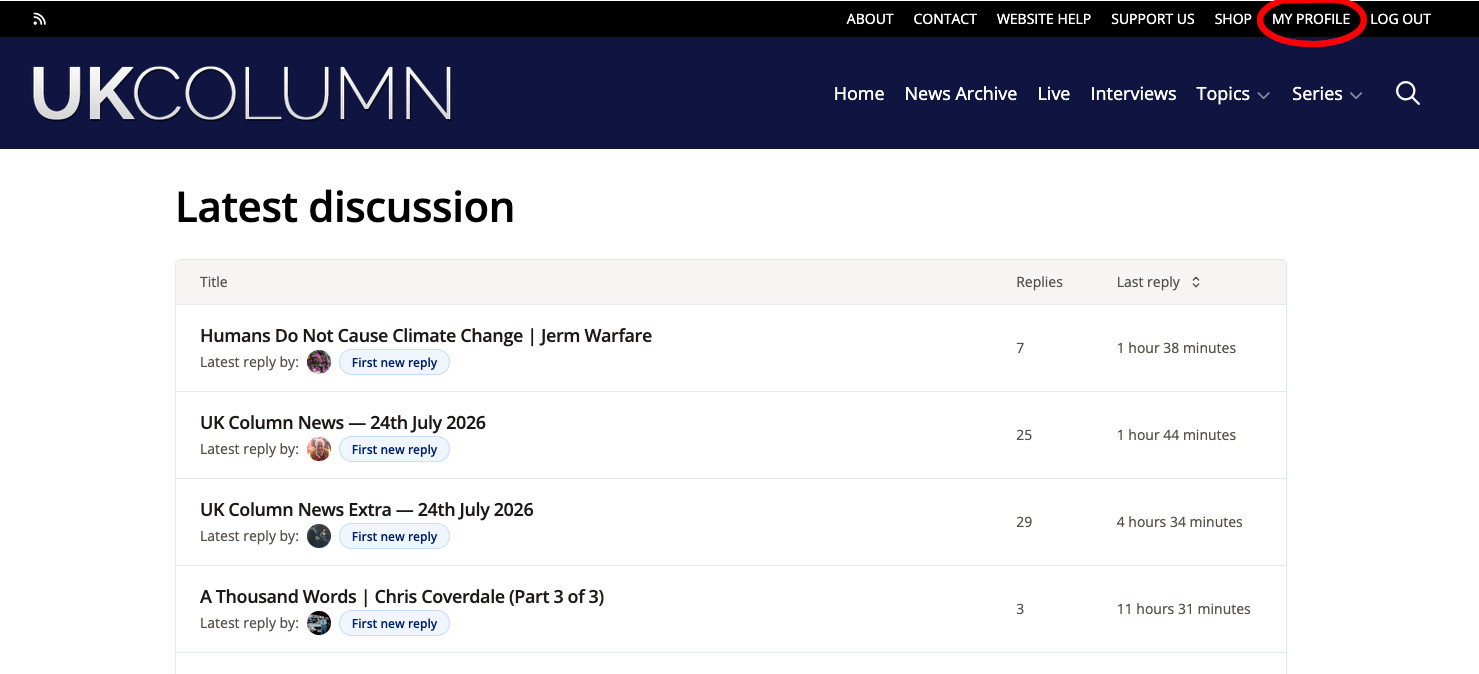
When you log in to your UK Column account, you can find your profile page with the "My Profile" link at the upper right corner of the page.
At the top of your profile page, there are tabs to different sections for your profile. One of these tabs is "Edit Profile."
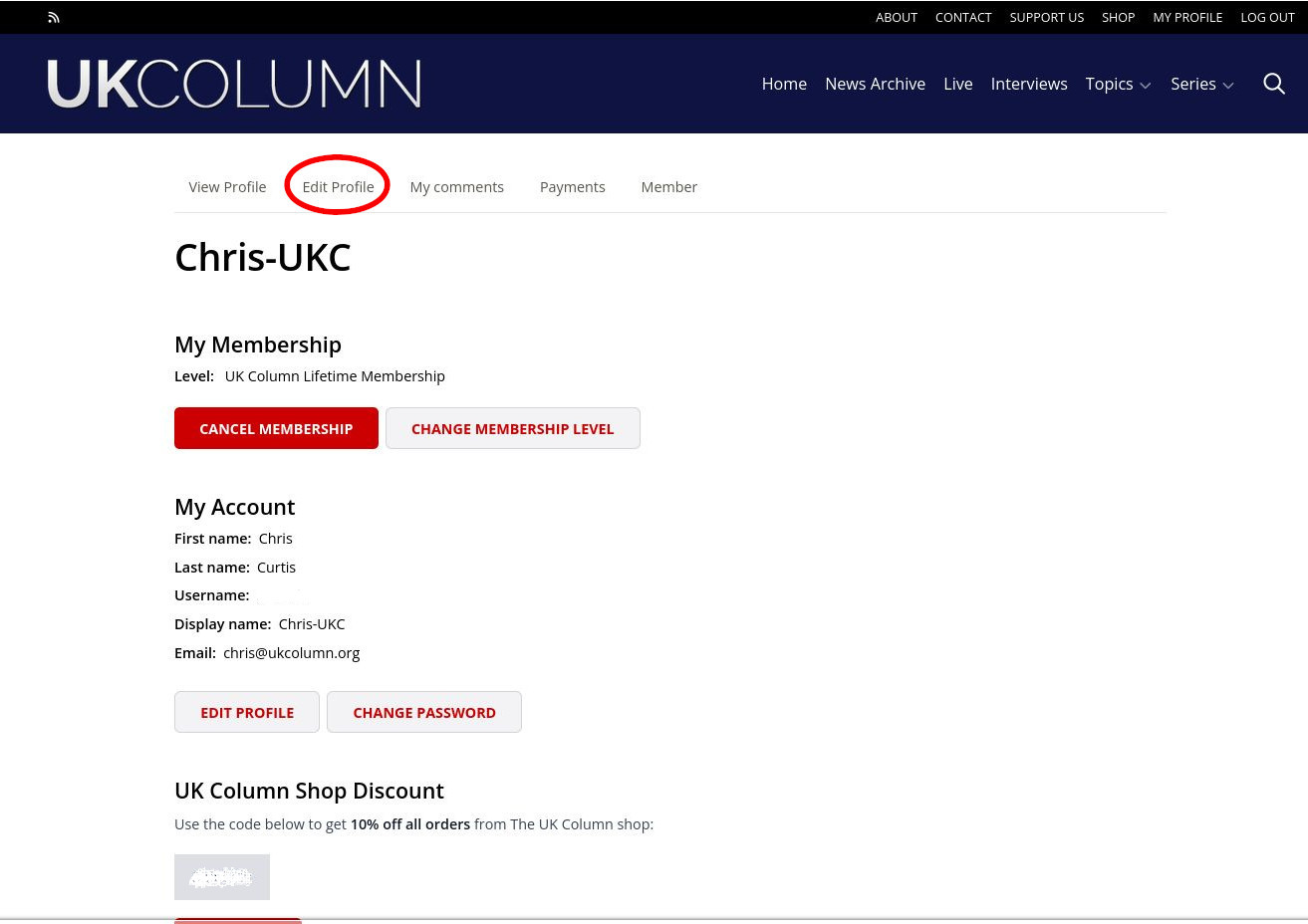
Click the "edit profile" tab. From here you can
- Change your first name.
- Change your last name.
- Change your email address
- Change your display name (the name other users see).
- Change your password.
- Add a signature
- Add a picture
- Subscribe or Unsubscribe to the UK Column Newsletter
The only required information on this page are those fields marked with an asterisk (*). You are not required to fill in information for any of the other fields if you do not wish to do so. After you have made changes or added information, make sure to scroll to the bottom of the page and click "Save" so the changes are saved to your account.
Your subscription can be managed from your profile page. There are three different types of subscriptions that can be purchased at the UK Column. These include lifetime, annual, and monthly subscription plans.
Lifetime
There will never be a need to renew your lifetime subscription. Your lifetime subscription does not expire. If you are unable to access subscription content and you have a lifetime subscription, the problem will almost certainly be a log-in issue where you need to log in to your account so you can see subscription content.
Annual
Annual subscriptions do not renew automatically. When your annual subscription expires, or is about to expire, you can renew your subscription in one of two ways:
First, you can renew your subscription from your profile page.
When you are logged in, there is a "My Profile" link at the top of the UK Column website, to the left of the "Log Out" link at the upper-right corner of the webpage.
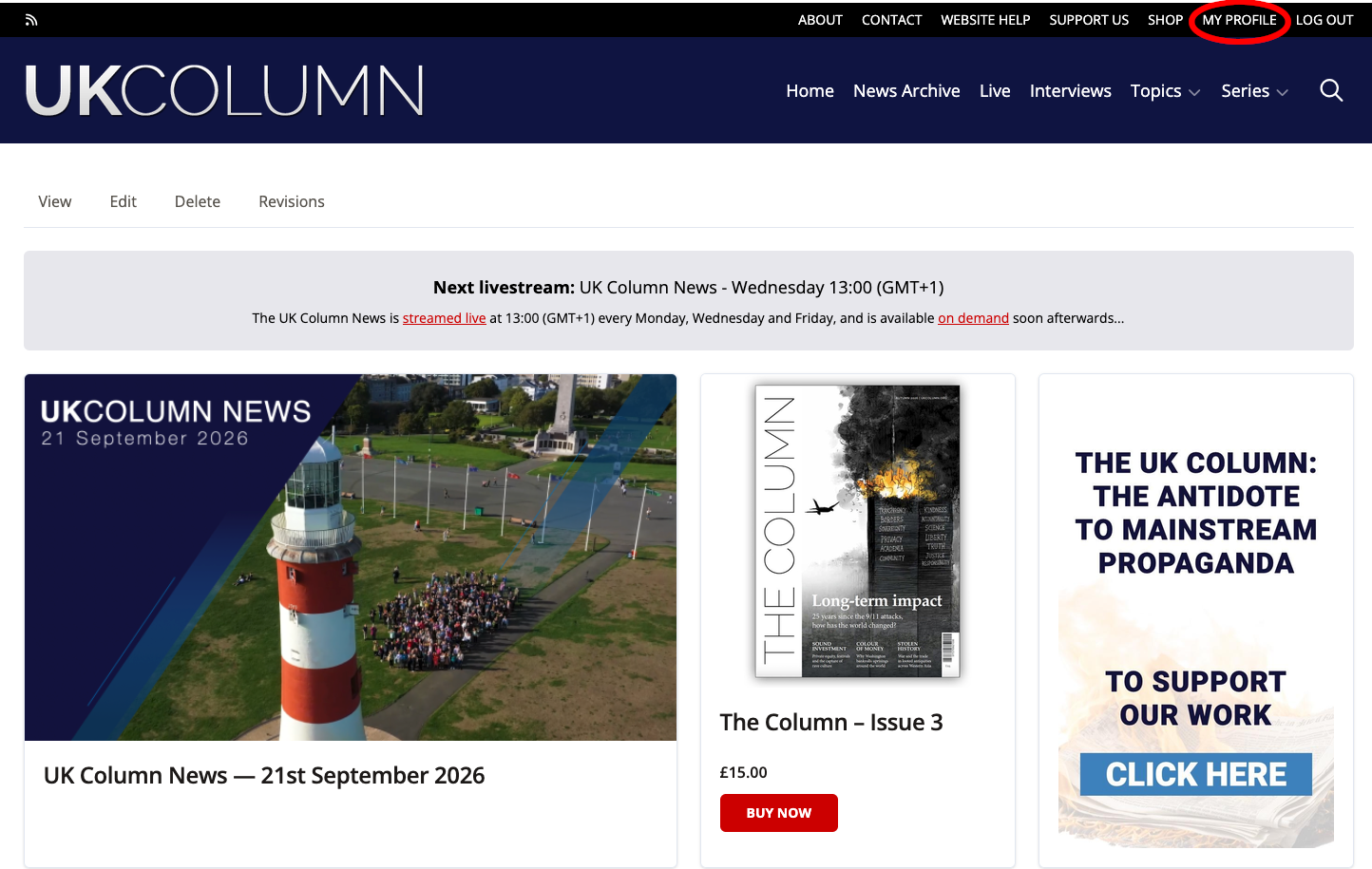
The My Profile link takes you to your profile page.
At your profile page, if your subscription has expired, you will see a button that says “Become a Member.” It looks like this:
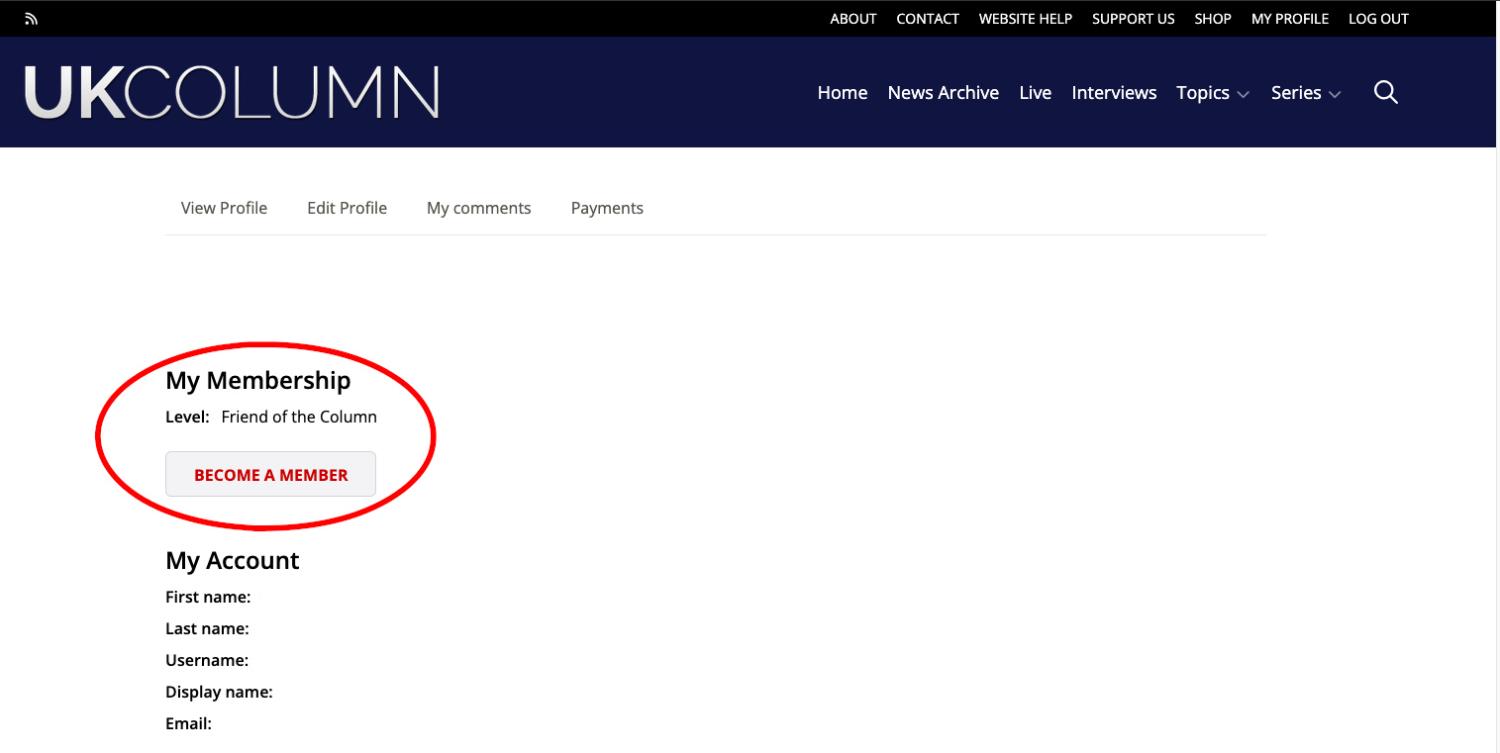
You can use that button to renew the subscription on your account.
If your annual subscription is not yet expired, your profile page will look something like this:
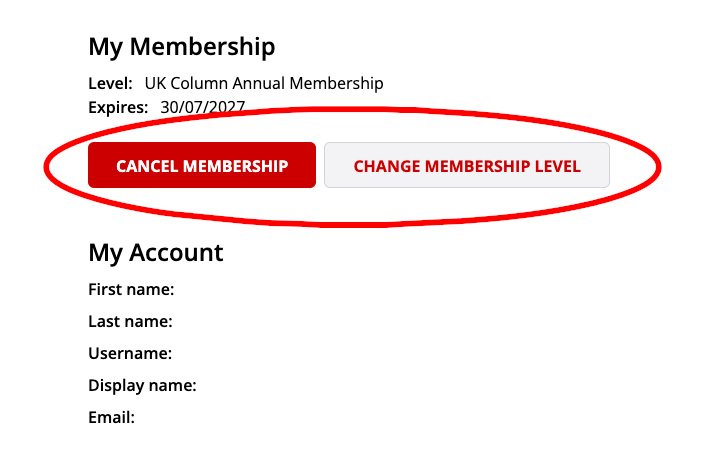
Note that the expiration date for your subscription is visible here. You also have a “Cancel Membership” button that will cancel your subscription. There is a “Change Membership Level” button that will allow you to change from your current membership option—monthly, annual, or lifetime—to another membership option—monthly, annual, or lifetime. If you have an annual subscription, and the expiration date is in the future, and you use the “Change Membership Level” button to purchase an annual subscription, it will add time at the end of your existing subscription for another year; For example, if your subscription ends in six months, and you purchase an annual subscription, it will add 12 months to end in 18 months.
The second way to renew your annual subscription is to call our office. We can take a payment over the phone and will update your account.
Monthly
Monthly memberships automatically renew each month, or are at least meant to do so. From time to time we have monthly subscribers who need to have a chat with their bank so that the bank honours that automatic renewal. You should not see an expiration date for your monthly subscription unless you have cancelled your subscription or asked us to cancel it for you.
If you have a monthly subscription that has expired, or is set to expire, and you would like to renew that subscription, you should do this from your profile page with the “Become a Member” button.
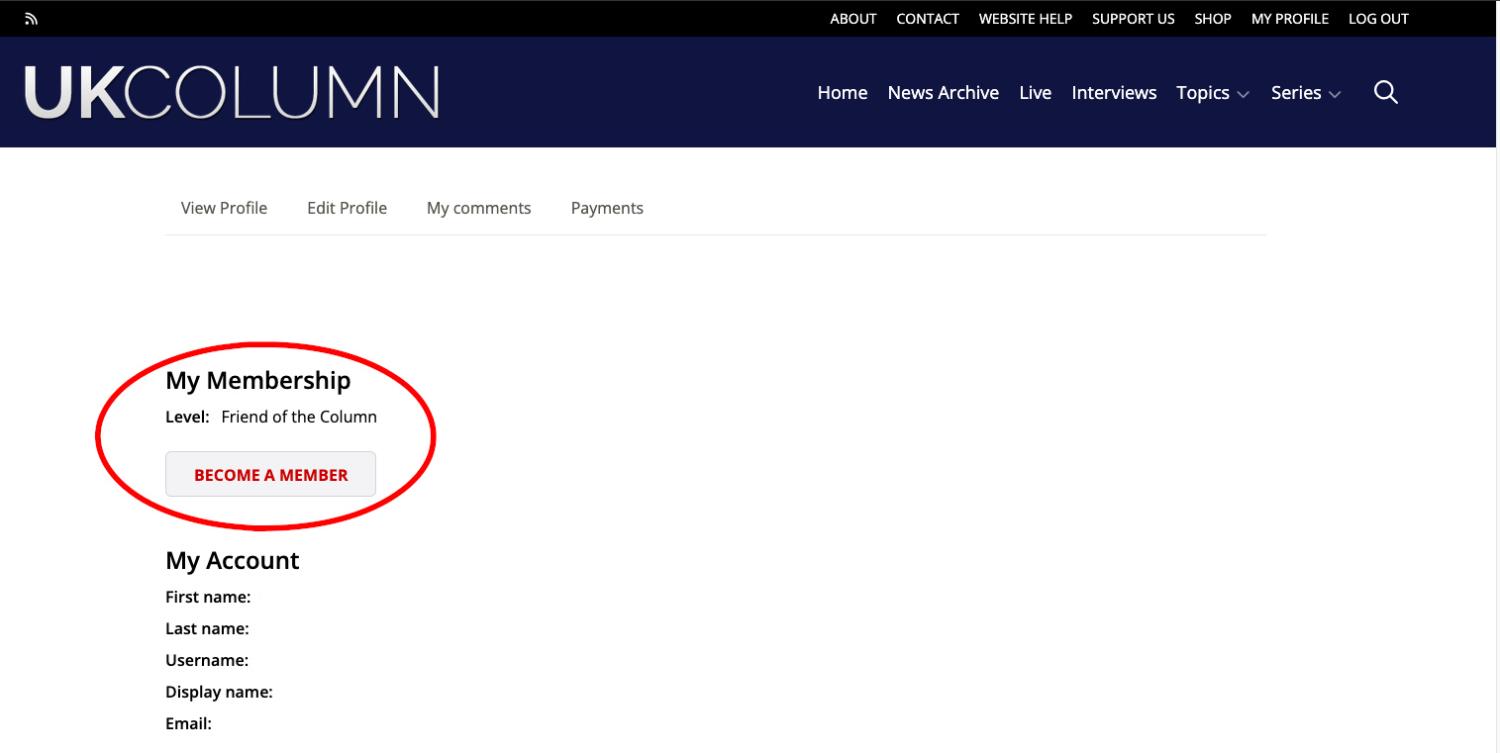
One of the most common reasons people find themselves unable to access News Extra is because they are not logged in to their UK Column account. Before you proceed to follow this guide on ways to access News Extra, please make sure you are logged in to your account.
Logged in? Great! Now we can look at three different options for how to access News Extra.
1. Watch News Extra LIVE, as it is broadcast.
News extra is broadcast five to fifteen minutes after our main news broadcast finishes.
- Go to our website at UKColumn.org.
Click on the "Live" link at the top of the homepage.
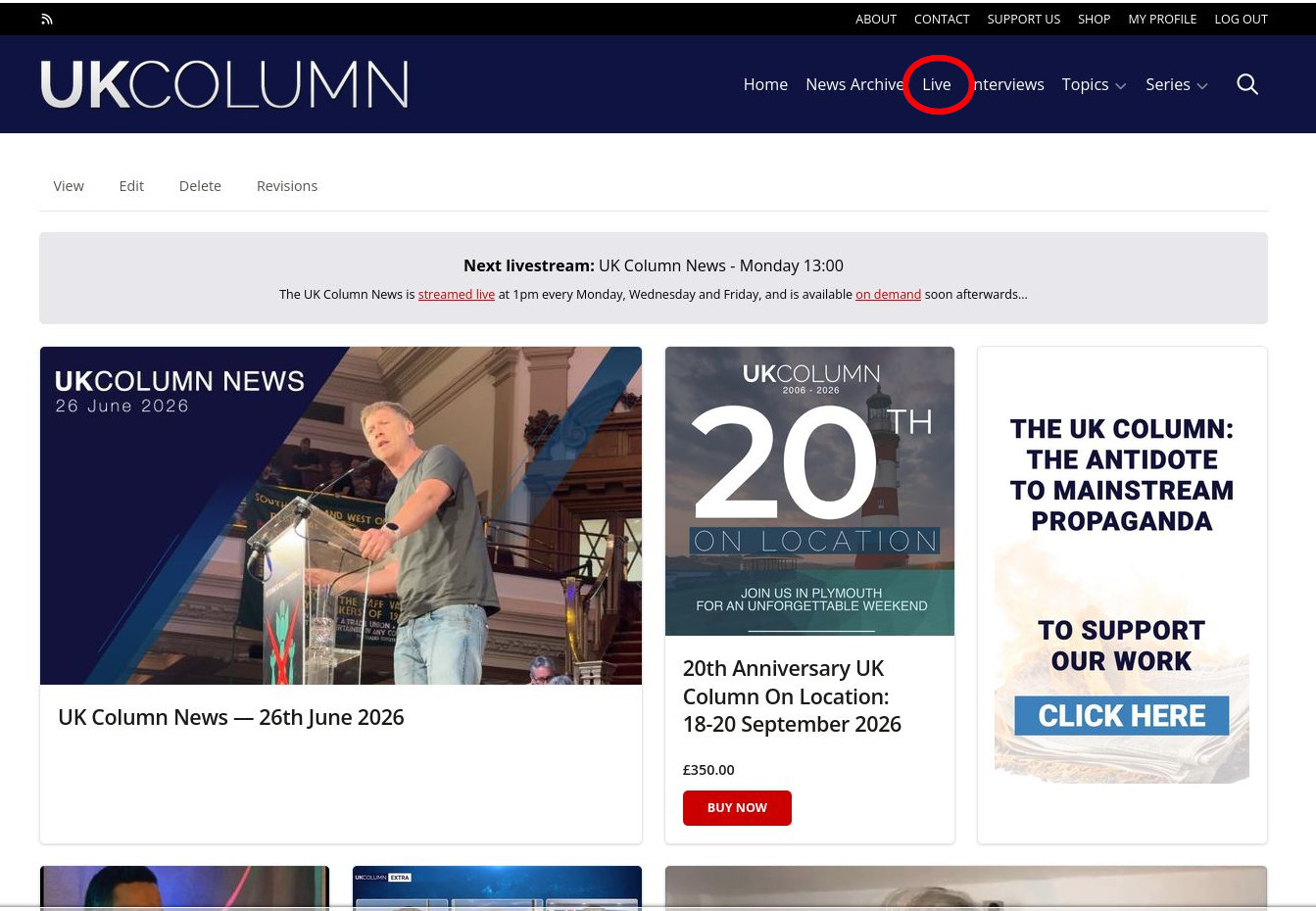
- You are now on a page with a video player. If a broadcast is underway, there will be a "play" button. Here you can also participate in live discussion with other viewers in the chat box on the right of the screen.
2. Click a link on the UK Column home page.
There is a link to the most recent News Extra broadcast on the home page at UKColumn.org
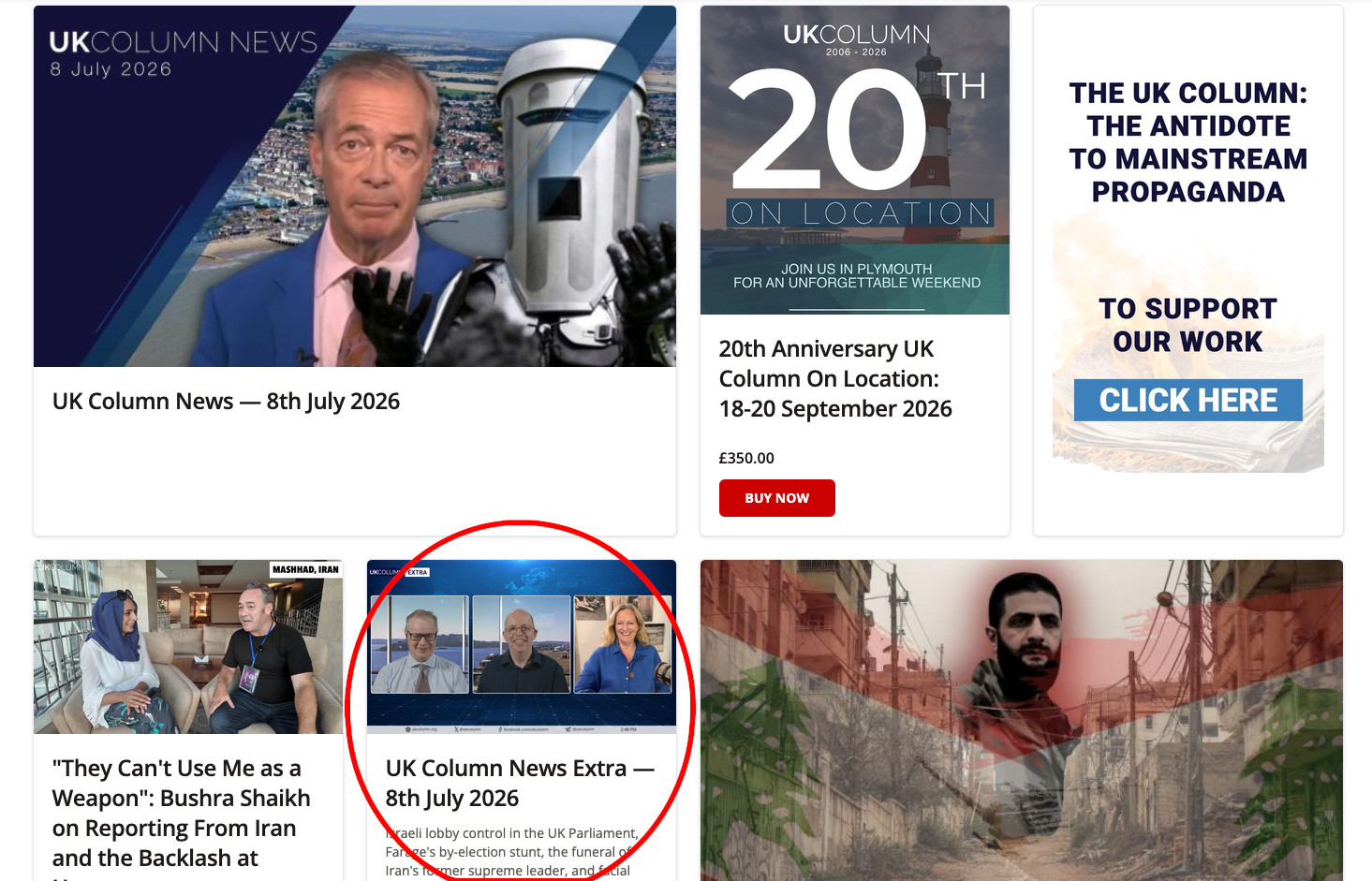
3. Access News Extra broadcasts from their series page in the "Series" list.
All News Extra broadcasts, as well as other series content put out by the UK Column, can be accessed from a drop-down menu at the upper right of the page.
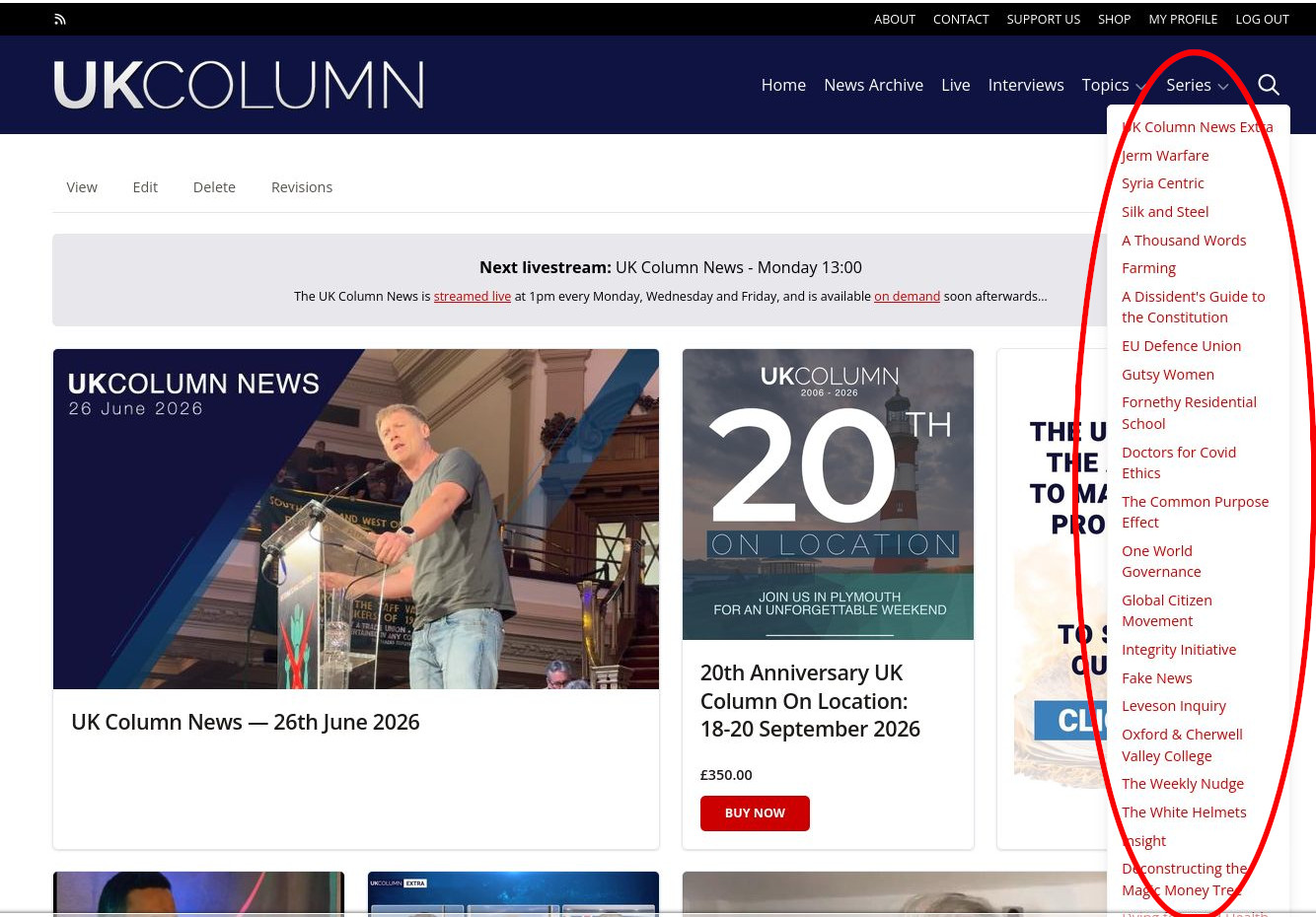
- Click "Series" at the upper right of the screen.
- Read through the list of drop-down items. The first in the list is "UK Column News Extra."
- Click on "UK Column News Extra."
- Arrive at a page full of UK Column News Extra broadcasts. Here you can select any News Extra broadcast and watch it.
You may have received instructions in an email as to how to access the video for that purchased event, but it has been a long time and you keep your email tidy. You no longer have the email. Or, it is possible that it may have gone to junk or that something went wrong and you never received the email. Never fear, these instructions can help.
You do not need an active subscription to access events that you purchased, but you do need to be logged in to your account.
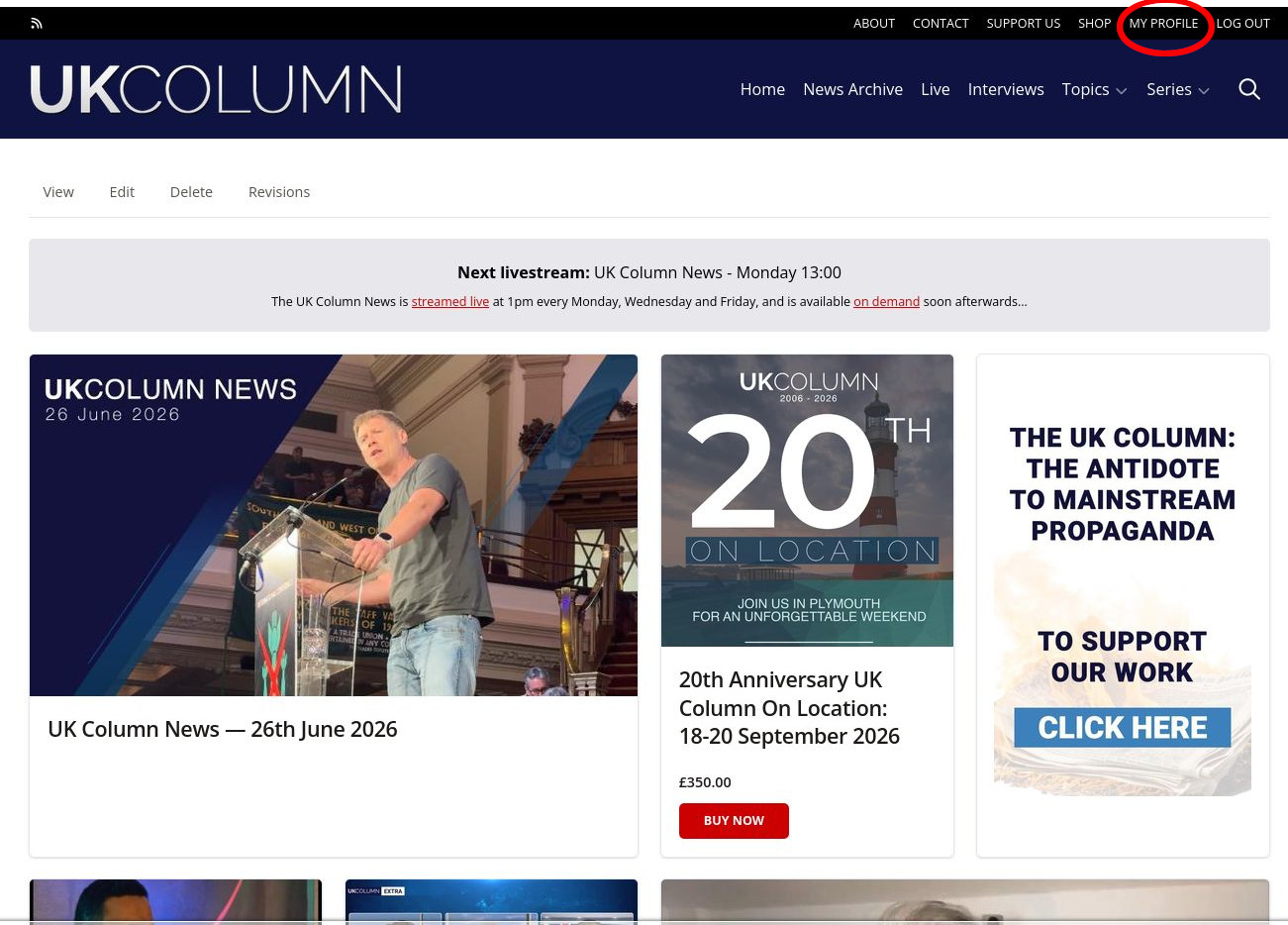
If you do not see the "My Profile" link, it is probably because you are not logged in. If so, first log in with the "Log In" link in the upper right.
Scroll to the bottom of your profile page.Here you will find links to livestream events that you have purchased.
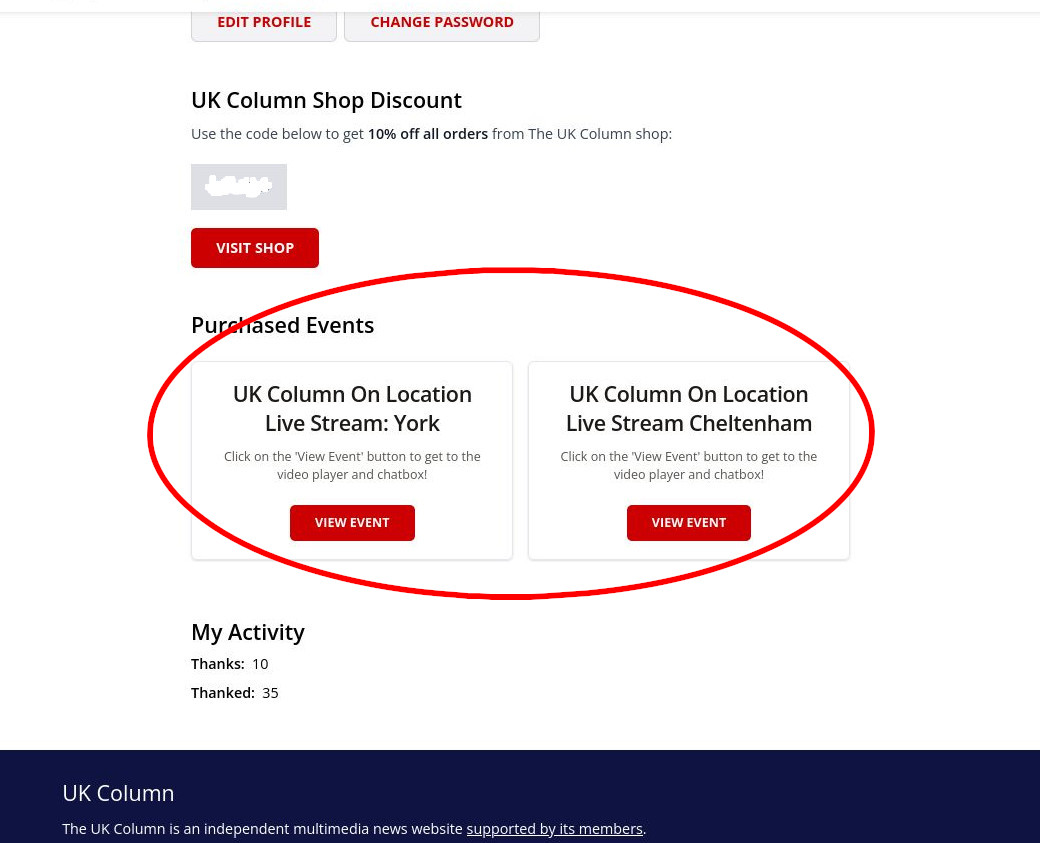
Please note that these are purchased Livestreams, not in-person ticket confirmations. If an event has not yet happened, there will not yet be a livestream for that event. If you have purchased an in-person ticket for an event that has not yet occurred, you should have received an email confirmation. We also have a record of your purchase.
When you subscribed to the UK Column, a discount code will have (or should have) been generated for you. This code can be used for discounts on items in our shop. It can provide you with savings on little things like pens or badges as well as bigger things like UK Column event tickets.
You can find your discount code on your profile page for your account. If you are not logged in to your UK Column account, log in with your log-in credentials with the use of the log-in link at the upper-right-most corner of the UK Column website, or this link will also take you to the login page.
Once logged in to your account, you will find a "My Profile" link at the top right of the website.
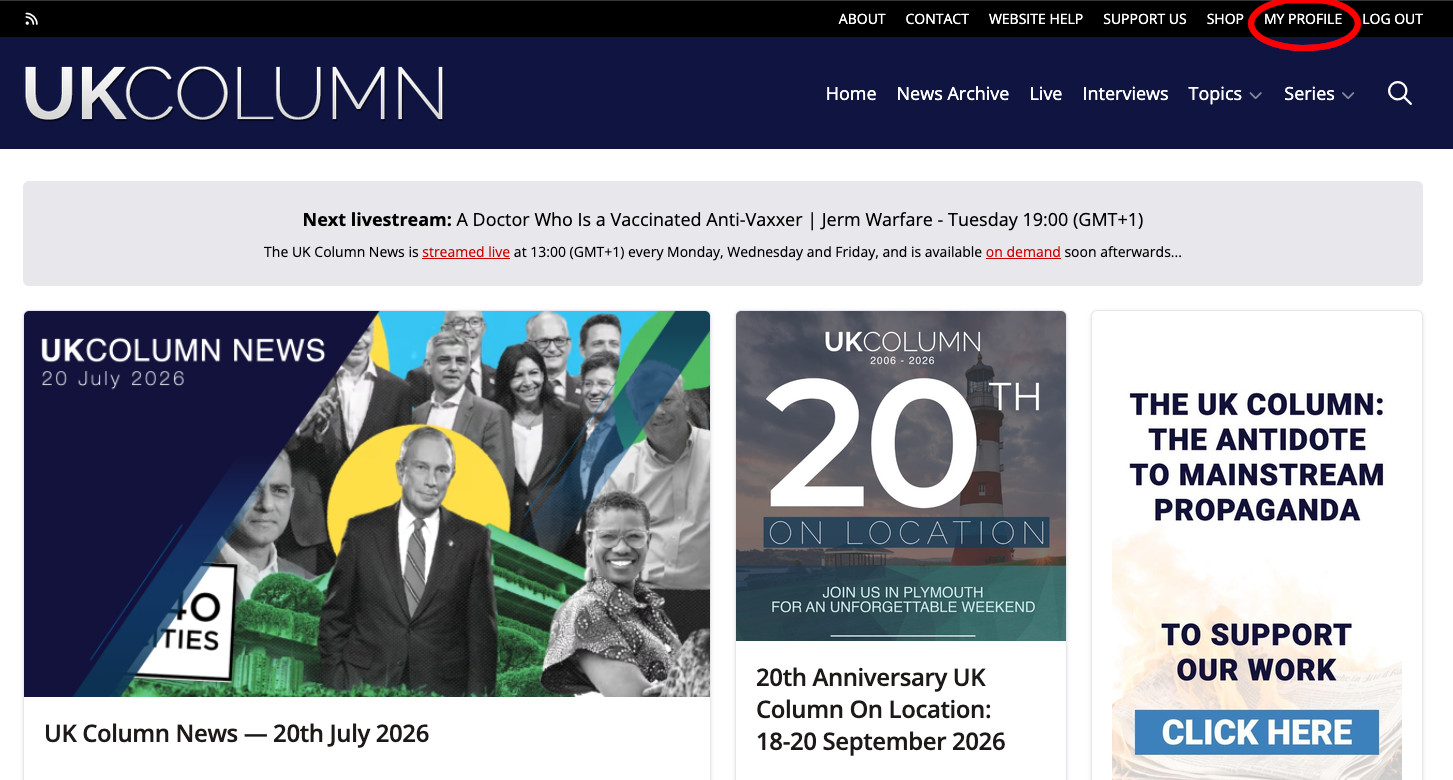
Click the "My Profile" link and you will arrive on your profile page. From there, scroll down just a little way and you will find a section with your shop discount code and a link to the shop.
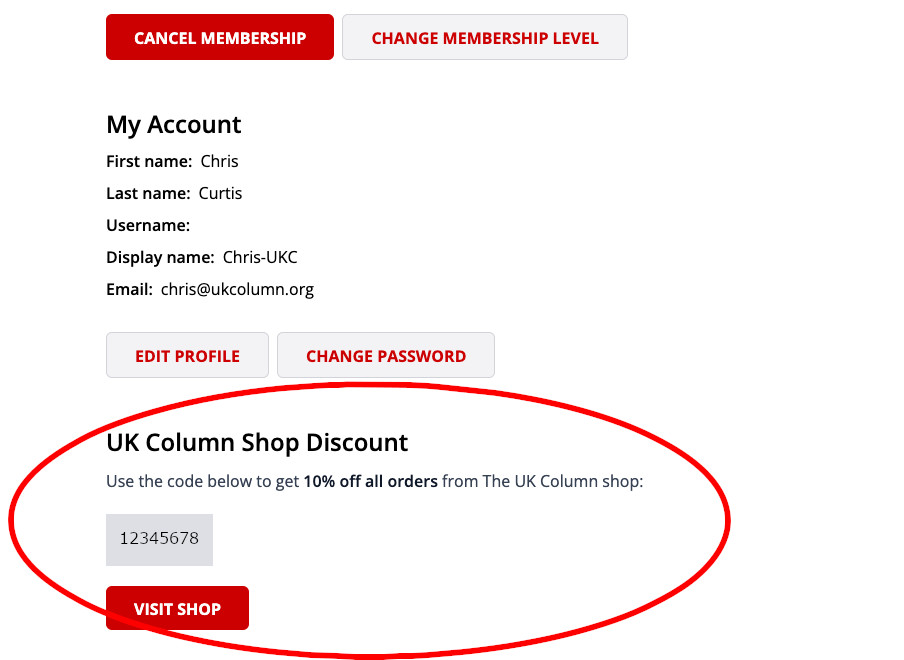
The code in the image above will not work for a couple reasons. 1) It is not a real code. 2) Your code is tied to your account. It will only work if you are logged into your account.
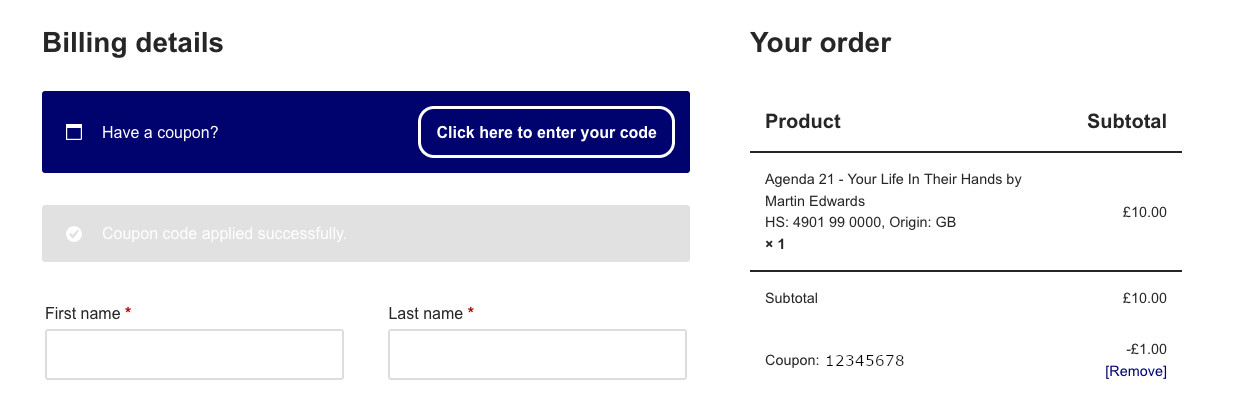
Once you have your code, visit the shop and put an item into your basket. Look at your cart, and then click "Proceed to Checkout." On the checkout screen, at the top, under "Billing Information," you will see the spot where you are to enter your discount code.
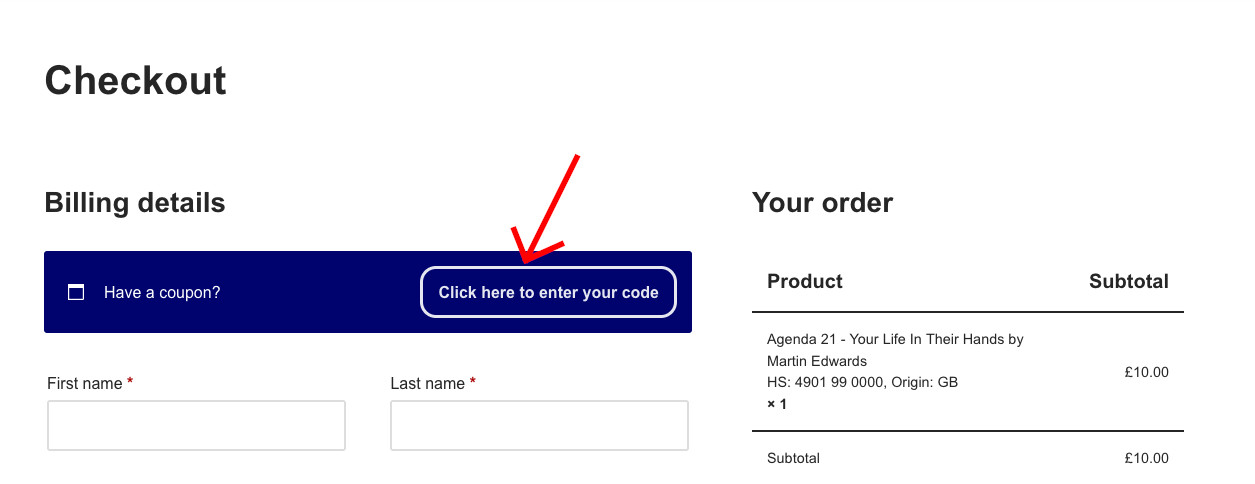
When you click on the "Click here to enter your code" box, you will then be able to enter your code into the entry box that appears.
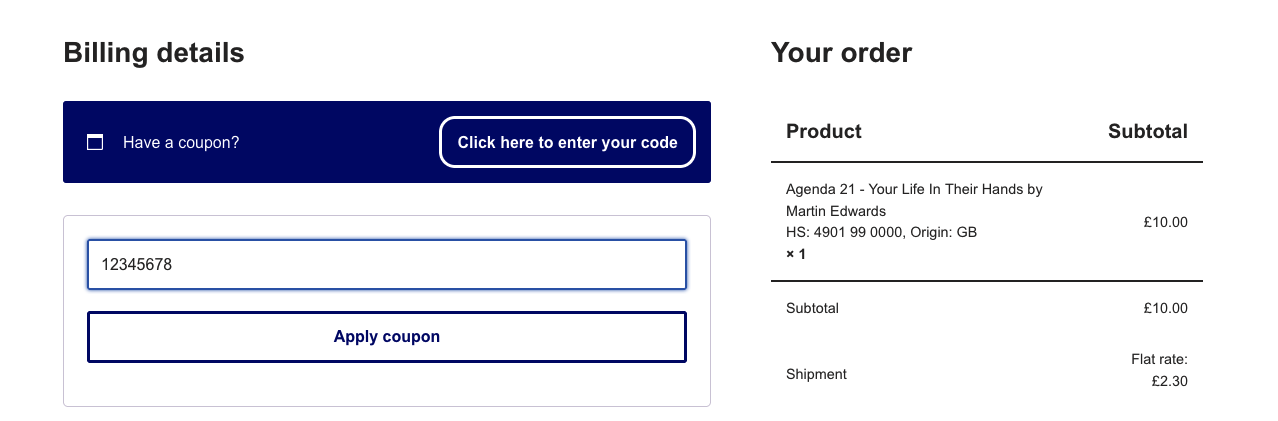
Before you click the "Apply coupon" button, fill in your billing details to include your email address. The code you enter will be checked against your email address. If you get an error, make sure you are logged into your UK Column account, you have entered your email associated with your UK Column account into the billing information, and that the code you have used is the one from your profile page in your UK Column account.
When you click apply coupon, your ten percent discount should apply to your order.
If you are a currently subscribed member, but there is no discount code shown on your profile page, please contact us so we can fix it.
Our privacy policy is available here.